


As introduced in the orders overview article, the All orders page contains a board of 7 important columns. In this article, you will be instructed on how to use them.
On top of the page, you have a search bar that allows you to search by product or by order reference. You can also filter the orders by status by selecting one of the options of the filter button: All, Pending, Processed, Closed.
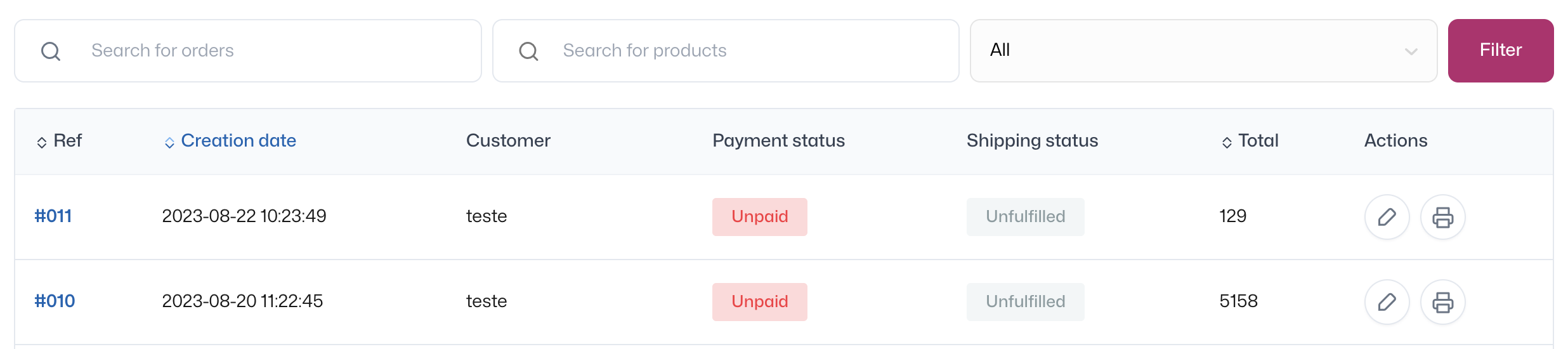
You will also find on the interface of this section, all the data related to each order separately:
- The order's reference: the most recent orders you received appear automatically at the top of the list.
- The creation date of your orders.
- The name of the customer who placed the order.
- The payment status: Paid, Pending, or Unpaid.
- The status of shipment: either Fulfilled or Unfulfilled.
- The total column: shows the total price of the order.
- The actions column: allows you to edit your order or print the order.
We also offer you on this page some other useful options, (you can find them at the bottom of the page), find below how you can use them :
- The Mass operations button is where you can either write the refs of the orders separated with (,) or one on each line. Or import a CSV file in order to fulfil a list of orders with their tracking codes.
- The Export button allows you to export your orders and turn them into a downloadable file.
- The "+Add an order" button allows you to create a new order from scratch.
Now that the All orders page is crystal clear, let’s focus on the order editing.
