
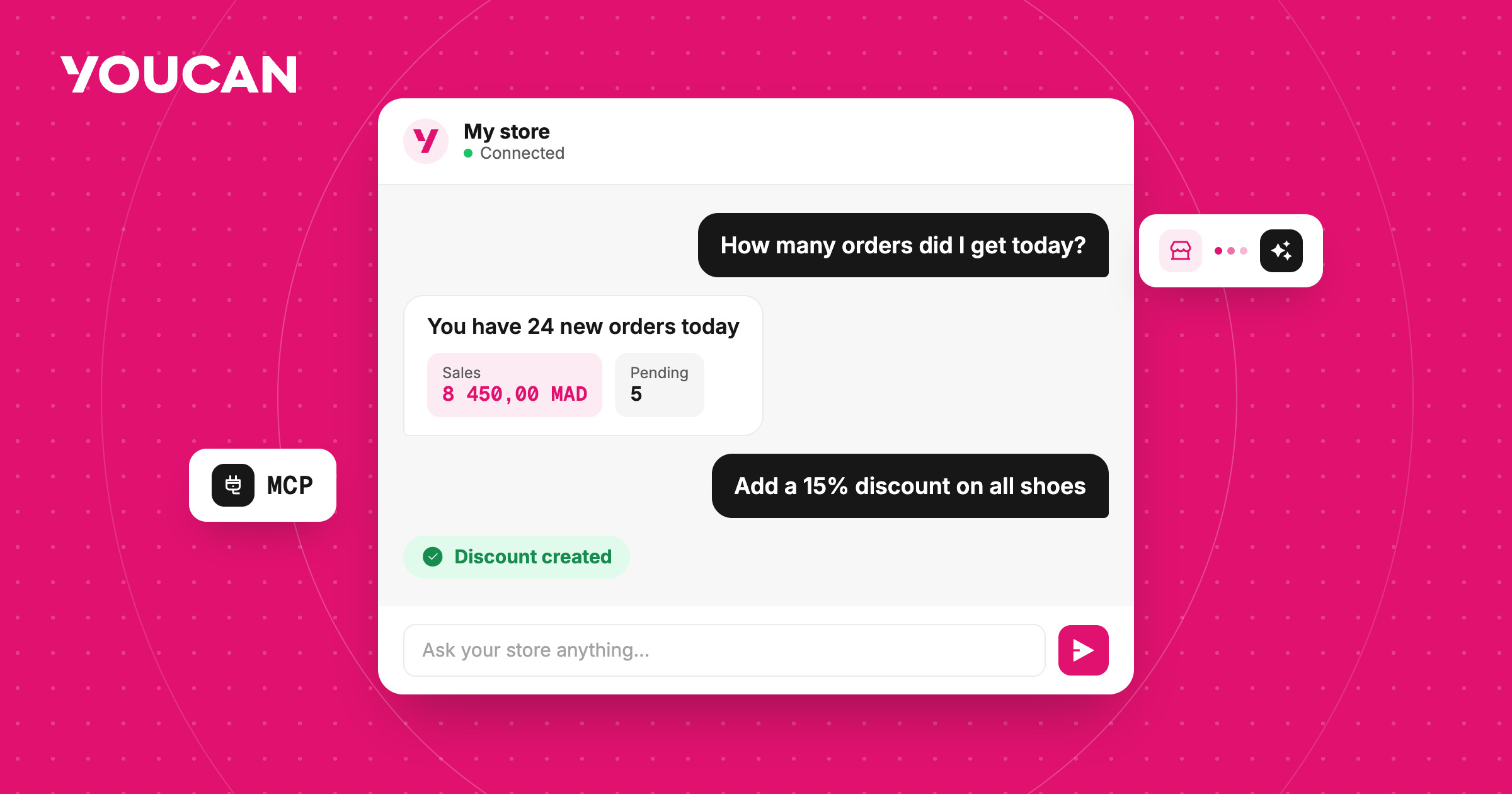
What if managing your YouCan store became as simple as having a conversation?
Running an online store means handling dozens of tasks every day: updating products, reviewing orders, monitoring inventory, editing store pages, creating coupons, and finding the information you need in your dashboard.
As these tasks add up, you can easily find yourself moving from one page and menu to another just to complete each task individually.
But what if you no longer had to figure out where a task lives?
Imagine opening your AI assistant and simply telling it what you need. It understands your request and interacts with your store directly.
That’s what YouCan MCP brings to the table.
YouCan MCP lets you connect your YouCan store to AI assistants such as Claude and ChatGPT, allowing you to interact with your store data and manage many of its functions using natural language instead of manually navigating through your dashboard.
You can connect the YouCan MCP server, sign in to your account, select the store you want to connect, and approve the connection. Once that’s done, you can interact with your store through a conversation and give the assistant the instructions you need.
Instead of searching through your dashboard for the right option, you can simply ask for what you want in the same way you would normally talk to an AI assistant.
If you already use AI today to write, plan, analyze information, or answer questions, why not let it work with your store too?
With YouCan MCP, AI goes from being an information assistant to becoming a more intuitive interface for interacting with your store.
When your store becomes part of your AI conversation
You may already use Claude or ChatGPT every day to create content, summarize information, analyze data, or come up with new ideas.
But this use is usually separate from your store: you ask the assistant a question, get an answer, and then go back to your dashboard to carry out the work yourself.
What if that barrier disappeared?
With YouCan MCP, you can connect your AI assistant to your YouCan store, allowing it to interact with a wide range of your store’s data and functions, depending on the tools and permissions available to it.
Instead of searching for information or a specific task inside your dashboard, simply describe what you want in natural language. Ask a question, make a request, analyze something, or tell the assistant what you want to accomplish.
The assistant understands your request and uses the appropriate tools to interact with your store. That is the core idea behind YouCan MCP:
You don’t need a new dashboard or a completely different way to manage your store. You simply get a new, conversational way to interact with it.
What powers this experience?
This connection is powered by MCP, or Model Context Protocol, an open standard that allows AI assistants to connect to external services and tools.
In the YouCan ecosystem, the YouCan MCP Server acts as the bridge between your AI assistant and your store.
Through this connection, the assistant can use a range of tools connected to the YouCan Store Admin API to access and interact with different parts of your store.
This means you don’t need to understand the API or know how the integration works behind the scenes to benefit from it. You simply need to know what you want to accomplish.
From products to store pages, a wide range of capabilities in one place
YouCan MCP is not limited to a single function.
Depending on the tools available to it, the assistant can interact with different areas of your store.
Your products, on demand
You can use AI to access and manage your products, including creating products, editing them, updating inventory and prices, managing variants, or deleting products.
This opens the door to tasks that previously required several steps inside the dashboard.
For example, you could ask the assistant:
> “Find the products that need an inventory update and show me their details.”
Instead of looking for them manually, one by one.
A faster view of your store orders
Orders are at the heart of daily e-commerce operations.
Through the order-related tools, the assistant can display and read orders, create them, and perform a number of actions related to their status, fulfillment, and closure.
Instead of digging through order lists, you can simply ask for the information you need in the way that works best for you.
Customers and their information
You can also use the assistant to access and update customer information, including the contact details and addresses available in your store.
This makes information much easier to access: simply ask for the data you need instead of searching for it manually.
Offers and coupons
From managing coupons to upsells, YouCan MCP gives you access to a number of marketing tools available in your store.
For example, you can ask the assistant to review your store’s coupons or create a new coupon based on the conditions you specify.
Store pages and the shopping experience
AI can also interact with your pages and Page Builder.
You can create or edit pages and get a preview link before making the page live.
This is especially useful when you want to prepare a new page for a campaign or a product collection without going through every creation step manually.
And that’s not all
YouCan MCP extends to a range of other store functions, including:
- Categories and menus
- Product reviews
- Upsells
- Shipping zones and rates
- Checkout settings
- Store languages
- Store images
- Invoices
And more.
The assistant can also read Metafields, while writing to them remains available to applications through the API.
Instead of treating each of these areas as a separate tool, you can access them through the same conversation with your AI assistant.
Your store hasn’t changed, the way you interact with it is about to
The real value of YouCan MCP is not just the number of tools available. It is the way you can use them.
Imagine you want a quick overview of the inventory performance of a specific group of products.
Or you want to review a group of products before updating their prices.
Or you need to edit a page and add products to it.
Or you want to access specific information about your orders and customers.
In all of these situations, you can describe the task to the assistant in your own words. You don’t need to formulate a technical command.
Just tell it what you need and let the assistant use the right tools.
How do you connect your store to YouCan MCP?
The YouCan MCP Server is available at:
The connection uses OAuth
When you add the YouCan MCP Server to the assistant you use, you’ll be redirected to YouCan’s authorization screen.
After signing in, select the store you want to connect and approve the connection.
Once these steps are complete, the assistant can use the tools available for that store.
In Claude
- Open Settings, then Connectors.
- Select Add custom connector.
- Enter a name for the connection, such as YouCan.
- Enter the server URL: https://mcp.youcan.shop
- Select Connect.
- Sign in to YouCan, choose your store, and approve the connection.
In ChatGPT
01 - Open Settings
02 - Enable Developer Mode
Go to Security & Log in, then enable Developer Mode if it is available on your ChatGPT account.
If you are using the ChatGPT desktop app, you can skip this step.
03 - Add YouCan
Go to Plugins, select Add new MCP, then choose Create new MCP App.
Use the following URL:
Then select OAuth for authentication.
04 - Approve the connection
Sign in to your YouCan account, select your store, and approve the connection.
05 - Start interacting
Ask your store for what you need directly, using the same natural language you normally use.
YouCan MCP is not limited to Claude and ChatGPT. You can also connect to the server through Claude Code, Cursor, and Visual Studio Code, as well as any assistant that supports connecting to Remote MCP Servers through OAuth.
You can find the setup instructions for each environment in the YouCan MCP documentation.
What happens when you give AI an instruction?
Although YouCan MCP allows the assistant to access your store and perform many tasks, you remain in control of the connection.
When a connection is created, the assistant is granted access to the store you selected, and it may ask you to confirm changes before carrying them out, especially when performing update or deletion operations.
YouCan MCP tools are divided into two main categories:
Read tools: allow the assistant to access your store data without changing it.
Write tools: allow it to create or modify data.
Update and deletion operations are classified as destructive operations, so the assistant asks for your confirmation before carrying them out.
This gives you the flexibility to choose the level of control that fits the way you work.
If you prefer to review changes before they are applied, you can enable confirmation for every change.
What about data and privacy?
When connecting an AI assistant to your store, it is important to understand exactly how the connection works.
The connection is made to a specific store that you select during the authorization process, and it only grants access to that selected store.
YouCan MCP does not process money transfers. For example, the pay_order and update_order_payment_status tools deal with recording the payment status of an order; they do not actually transfer funds.
As for store data accessed by the assistant—such as customer names, phone numbers, email addresses, and physical addresses—it is sent to the AI assistant provider you use and is subject to that provider’s processing and privacy policy.
For this reason, make sure to review the privacy policy of the assistant you choose, along with YouCan’s Privacy Policy.
You can disconnect at any time
If you want to stop an assistant from accessing your store, you can do so in two ways:
- Remove the YouCan Connector from the AI assistant you use.
- Or go to the seller area in YouCan, then Settings → Connected apps, and select Revoke next to the connection you want to disable.
- When you revoke the connection from the seller area, that client’s access to the store ends immediately.
A few things to keep in mind
There are a few operational limitations worth knowing before you get started:
- Each connection can make up to 120 tool calls per minute. If you reach this limit, wait one minute and try again.
- A closed store cannot be managed through the assistant. You must reopen the store from the seller area first.
- Each connection provides access to one store. If you want to use the AI assistant with another store, you need to add the connection again and select the other store from the authorization screen.
A new way to manage your store
E-commerce tools have always aimed to make store management easier. Today, AI introduces an entirely new way to interact with them.
With YouCan MCP, you no longer need to think about where a setting or tool is located.
You can start with the goal itself:
What do I want to accomplish?
Then describe it to the assistant in the same way you normally speak.
From managing products and orders to customers, coupons, pages, and more, AI can now become part of the way you work with your YouCan store every day.
And this is only the beginning.
YouCan MCP is the first step toward a smarter store management experience, and we’re continuing to develop it and add more capabilities.
Connect your store, explore what your AI assistant can do, and discover a new way to interact with your e-commerce business.
Welcome to the YouCan AI experience.